
Moderation teams and permissions
Map Discord roles to ModFlow teams, apply least privilege, and verify the effective permission at the action being performed.
- Audience
- team lead · server admin
- Availability
- private beta access
- Maturity
- alpha · partial
Last reviewed
On this page
Map staff roles to the least privilege
Moderation Teams maps a Discord role to an ordered server team with optional ping/escalation roles, an escalation channel, enabled state, and explicit permission keys for dashboard and Discord-native workflows.
Define the job before granting access
Only viewers with moderation-team management authority can create, seed, update, reorder, disable, or delete teams. Every protected operation recalculates effective access; a team label is context, not a bypass.
Open Settings → Teams for the selected server, review existing team order and cross-team warnings, then modify one team at a time.
- A Discord role with the intended members and hierarchy.
- A written least-privilege job description for the team.
- An escalation destination and reviewer path for sensitive permissions.
Build and test a moderation team
Create or select the team
Use the supported seed control or create a named team mapped to the intended Discord role.
Check: One server team has a clear role and enabled state.
Grant the minimum permissions
Enable only the permission keys needed for that team's daily job and review the descriptive previews.
Check: Sensitive administration, evidence, execution, and export powers remain narrow.
Configure escalation
Choose supported ping and escalation roles/channels and review cross-team warnings.
Check: Work can reach an authorized senior reviewer without broadening ordinary access.
Test effective access
Use a representative team member to open and attempt the intended read/write surface, then test one nearby denied action.
Check: Allowed and denied behavior match the least-privilege design.
Verify both allowed and denied actions
Each server team has an attributable Discord role mapping, limited permissions, and a tested escalation path that matches actual access checks.
How effective team permission is calculated
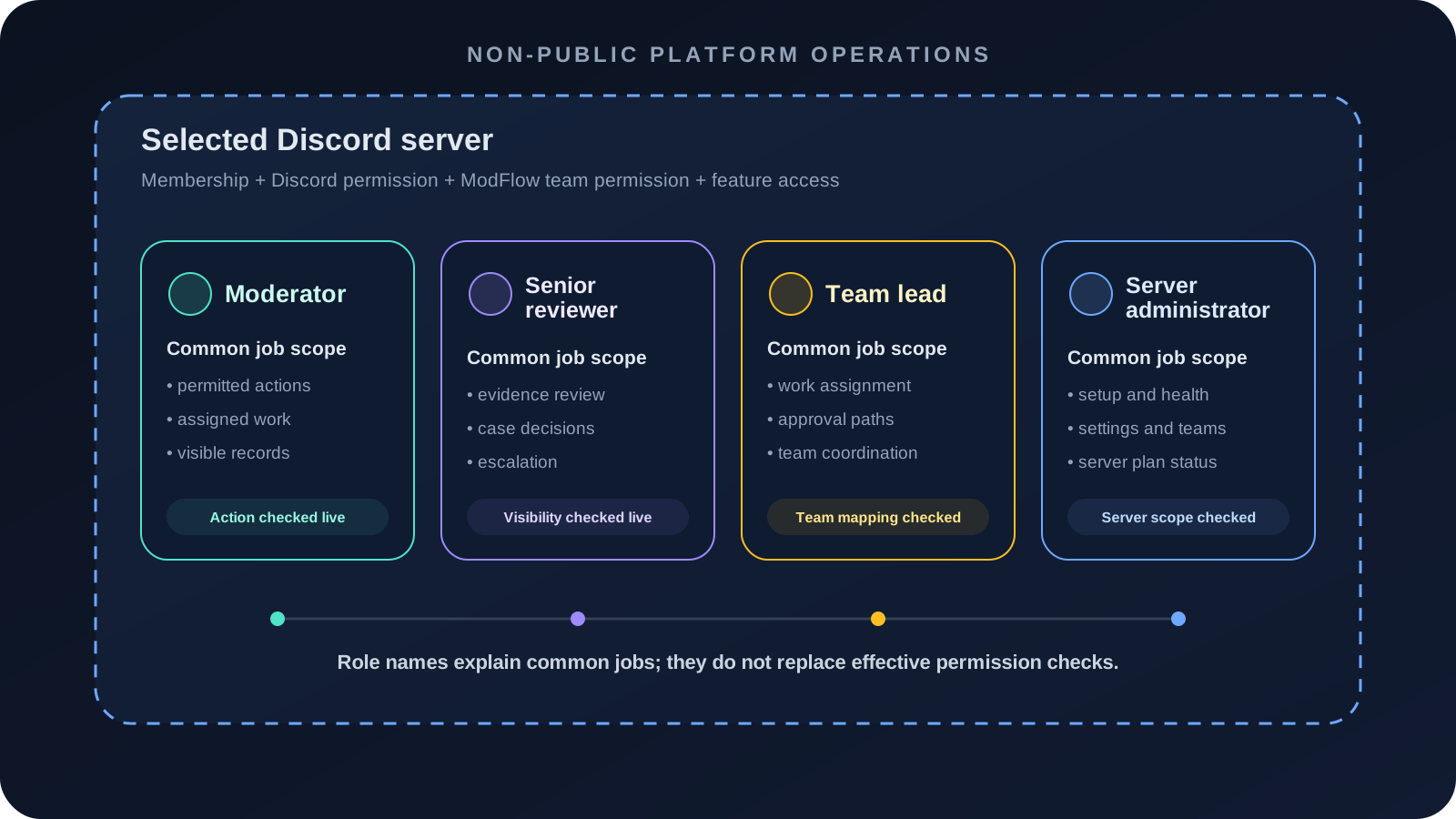
A ModFlow team maps one Discord role to a server-scoped set of capabilities. Team order, enabled state, role membership, Discord Administrator status, protected-role rules, and operation-specific checks can all affect the result. A team name such as Moderator or Senior Reviewer is descriptive; the permission keys are authoritative.
- STAGE 01
Identity
The authenticated Discord user and selected server are established.
- STAGE 02
Discord membership and roles
Current server membership and role assignments are resolved.
- STAGE 03
Team mapping
Enabled ModFlow teams that map those roles are considered in configured order.
- STAGE 04
Capability check
The exact page, record, source, or action permission is evaluated.
- STAGE 05
Target/state check
Current Discord hierarchy, record visibility, and workflow state are rechecked.
- STAGE 06
Result
The surface is shown, redacted, disabled, or denied with a specific explanation.
In-scope permission groups
| Group | Examples | Review before granting |
|---|---|---|
| Visibility | Open dashboard, Cases, Review Queue, Records, Activity, Users, Appeals, Actions, Scheduled, Analytics, Imports, Health, Plan, Settings, Teams. | Does the job need the whole page or only a handoff from another reviewer? |
| Case actions | Create/edit, add people/evidence, view sensitive evidence, comment, claim, reassign, visibility, request evidence, escalate, decide, execute, close, reopen, export. | Separate investigation, sensitive evidence, decision, execution, and export powers. |
| Moderation actions | Warn, mute, jail, unjail, ban, schedule/cancel actions, notes, records export. | Match direct enforcement to training and escalation policy. |
| Soundcheck | View, start, stop, configure, download/delete voice evidence, view access logs. | Consent, privacy, retention, and artifact sensitivity. |
| Administration | Manage settings, teams, team permissions, staff directory, protected roles, plan, bot settings, escalation, and appeals. | Use the smallest administration role; some visible staff-management controls may remain outside this guide when unfinished. |
Design a least-privilege team
Define the job
List the pages the team must open, the records it must see, the writes it must perform, and the actions it must never take.
Check: The role has an explicit scope.
Map one intentional Discord role
Use a role with known membership and hierarchy; avoid mapping a broad community role.
Check: Team membership is predictable.
Grant read capabilities first
Enable only the visibility and record permissions needed to perform normal review.
Check: The team can inspect work without receiving enforcement/admin power.
Add narrow write capabilities
Grant create/comment/claim/action permissions one by one with required dependencies.
Check: Each write has a job-based reason.
Configure escalation
Choose the team/role/channel that receives cases or decisions beyond the team's authority.
Check: Staff have a safe alternative to over-permission.
Test allowed and denied fixtures
Use a representative account to complete one intended job and attempt one nearby forbidden job.
Check: The permission boundary is observed, not assumed.
| Role | Common allow | Common deny/escalate |
|---|---|---|
| Moderator | Dashboard, Users, Records, Activity, create/comment/claim Cases, warn/mute/jail as policy allows. | Sensitive evidence, final Ban Review decision, broad exports, team/settings management. |
| Senior reviewer | All necessary Case evidence, decisions, Ban Review, appeals, reassign/escalate, selected exports. | Billing, protected roles, or unrelated server settings unless separately assigned. |
| Team lead | Team-case oversight, scheduling, automation recommendations, analytics, staff handoff, selected configuration. | Global platform operations and excluded features. |
| Server administrator | Server-scoped settings, teams, health, plan, setup, and corrective operations. | Bot-owner, deployment, database, secret, provider, or cross-server operations. |
Change and audit permissions
- Record the existing team role, order, enabled state, and permission set before editing.
- Review dependency warnings such as sensitive evidence requiring evidence access or cancellation requiring scheduling authority.
- Change one team at a time and avoid simultaneous editors.
- After saving, test a current team member rather than relying only on the permission preview.
- When access is too broad, disable the risky capability immediately, review recent use, and document the correction.
- When a staff member changes roles, update Discord membership and verify ModFlow effective access; cached directory display is not enough.
A staff member can do more or less than the team editor suggests
What you see: The live operation does not match the expected team permission.
What may be happening: Discord Administrator, multiple team roles, team order, protected-role access, stale membership, record visibility, or target/state checks can change the result.
What to do
- Confirm the user's current Discord roles.
- List every enabled ModFlow team that maps those roles.
- Identify the exact page/record/action check.
- Test after refreshing membership and correct the narrow mapping.
Correct an unsafe permission mapping
Discord Administrator can independently affect access, role membership can change outside ModFlow, and cached directory context can lag. Always verify the live operation instead of inferring authority from the diagram or team name.
The server does not match the change you made
What you see: A control is unavailable, validation fails, or the resulting server state differs from the intended configuration.
What may be happening: Selected-server context, Discord permission, ModFlow team permission, feature access, stale Discord objects, or concurrent changes may block the workflow.
What to do
- Review the selected team and mapped Discord role.
- Read cross-team warnings before saving again.
- Restore the last known permission set.
- Verify effective access with a representative account and exact operation.
Grant workflow-specific access
Conversation relay, event-log management, assignments, Watchlist sources and senior context, staff evaluations, Scorecards, and Google or Microsoft provider connections each require their own narrow authority in addition to server and page access. A visible navigation item or Discord role name is not proof that an action is permitted.